Guides
Give readers a map, then let them explore
Turn a large explanation into linked canvases. Follow a real example in Unpaged’s free, temporary playground.
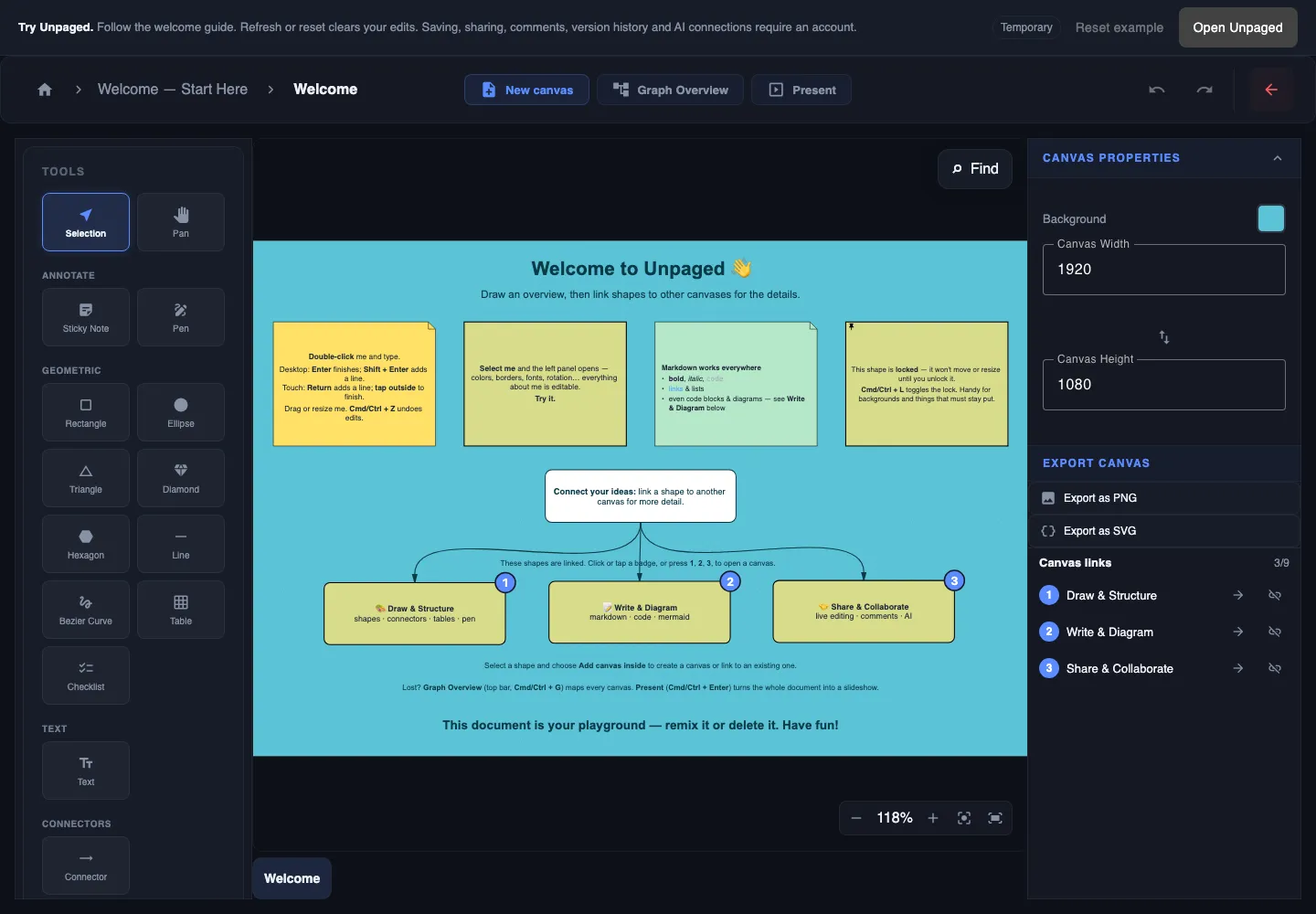
A long explanation creates a small dilemma. Give readers every detail at once, and they have to find their own starting point. Cut the detail, and the explanation becomes less useful.
An explorable document gives them a starting point and a way to go deeper. The first canvas shows the shape of the subject. Linked canvases hold the details.
You can try this structure in Unpaged’s playground without creating an account. It opens a real, editable welcome guide. Follow along below, or explore it at your own pace. Changes in the playground are temporary: refreshing or resetting clears your edits.
Let the overview answer “where do I start?”
The welcome canvas introduces a few actions, then offers three routes: Draw & Structure, Write & Diagram, and Share & Collaborate. The short descriptions tell you what you will find before you open them.
That is a useful rule for your own document: the first canvas should help someone choose their next question. A project handover might start with “What are we building?”, “How does it work?” and “What needs attention?” A lesson might start with a phenomenon and its main causes.
Keep that overview useful on its own. A reader should understand the summary without opening every link.
Put the next layer behind a clear label
In the playground, click or tap the numbered badge on Write & Diagram. Its canvas shows Markdown, a code example, a Mermaid diagram and UML shapes. Those details have their own space instead of crowding the introduction.
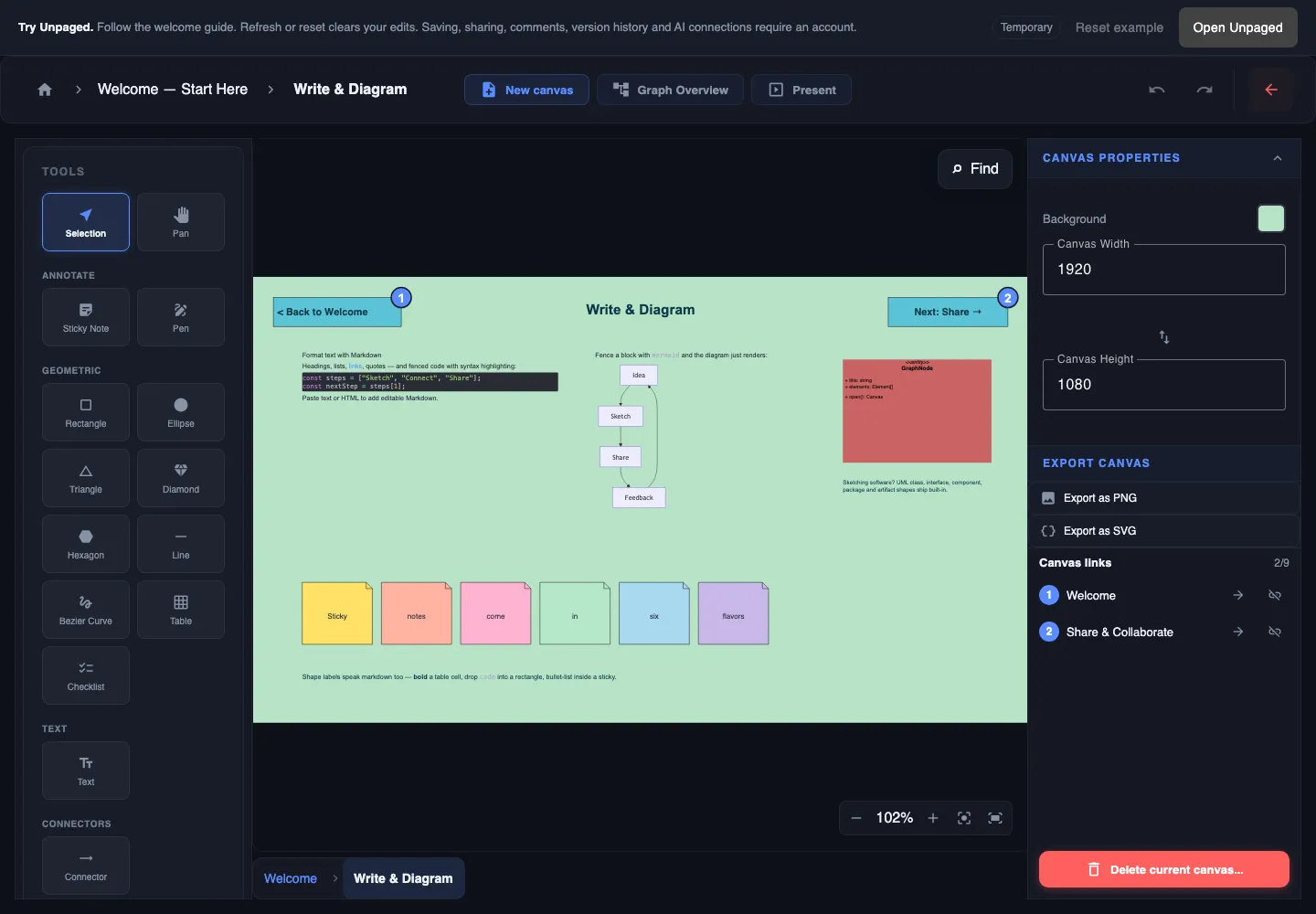
The Write & Diagram branch turns one choice on the overview into a focused set of examples.
The reader can stop at the overview or open the part they need. They do not have to absorb the entire document to understand one topic.
Try this with a subject you know well:
- Write the main question at the top of an overview.
- Add a few clearly named shapes that answer different parts of it.
- Select a shape and choose Add canvas inside to create a detail canvas or link to an existing one.
- Put the explanation there, then return to the overview and check whether the label still describes it.
Give readers a route back
Depth is useful only if readers can keep their bearings. The guide includes a Back to Welcome link on each detail canvas. Unpaged also shows the current canvas path, and Graph Overview in the top bar maps the document’s canvases.
Use names that make sense out of context. “Write & Diagram” tells a reader more than “Details 2”. A short introduction on each canvas can explain how it relates to the overview.
For a larger document, follow a branch several levels down and return to the beginning. If you lose track of what you were trying to explain, a new reader probably will too.
Try one small edit
Return to the welcome canvas and double-click the editable example shape. Change its text to a question from your own project. On desktop, press Enter to finish; Shift + Enter adds a line. On touch devices, tap outside to finish editing.
You can move or resize the example, and use Cmd/Ctrl + Z to undo an edit. The guide also contains a deliberately locked shape, so choose the editable exercise first.
You do not need a complicated structure to start. An overview and two or three detail canvases can be enough. Add another canvas when it gives an explanation room to breathe.
Test it with a reader’s question
Instead of asking someone to “review the document”, give them a small task: find the diagram example, or show how to return to the welcome canvas. Watch which labels they choose and where they hesitate.
Then adjust the names, order or amount of detail. The aim is to let someone find an answer without needing its author beside them.
Open the playground and follow one branch. It supports local editing, canvas navigation and presentation. Saving, sharing, comments, version history and AI connections require an account; the guide describes those features, but they are not enabled in the temporary playground. Create an account when you are ready to keep your own documents.